



Azure Pricing Calculator: How to Estimate Azure Costs (2026)
Why is your Azure bill always higher than you expected? Because most of us create the resource first and learn the cost later. Microsoft’s free Azure Pricing Calculator flips that around: it estimates your monthly cost down to the cent before you deploy a single resource. In this guide I’ll walk through using it step by step, the settings that change your estimate the most, and cost-optimization lessons from the field.
What Is the Azure Pricing Calculator?
The Azure Pricing Calculator is Microsoft’s official, free cost-estimation tool. It runs at azure.microsoft.com/pricing/calculator and lets you add any Azure product — virtual machines, databases, storage, AI services — to an estimate, then prices it by region, size and usage hours. You can use it without signing in; with a free Microsoft account you can also save and share your estimates.
As a system administrator managing enterprise Azure infrastructure in my day job, I open this calculator before every new project. Used correctly, it ends the era of bill shock; used carelessly, it can mislead you. The difference comes down to the settings below.
How to Use the Azure Pricing Calculator (Step by Step)
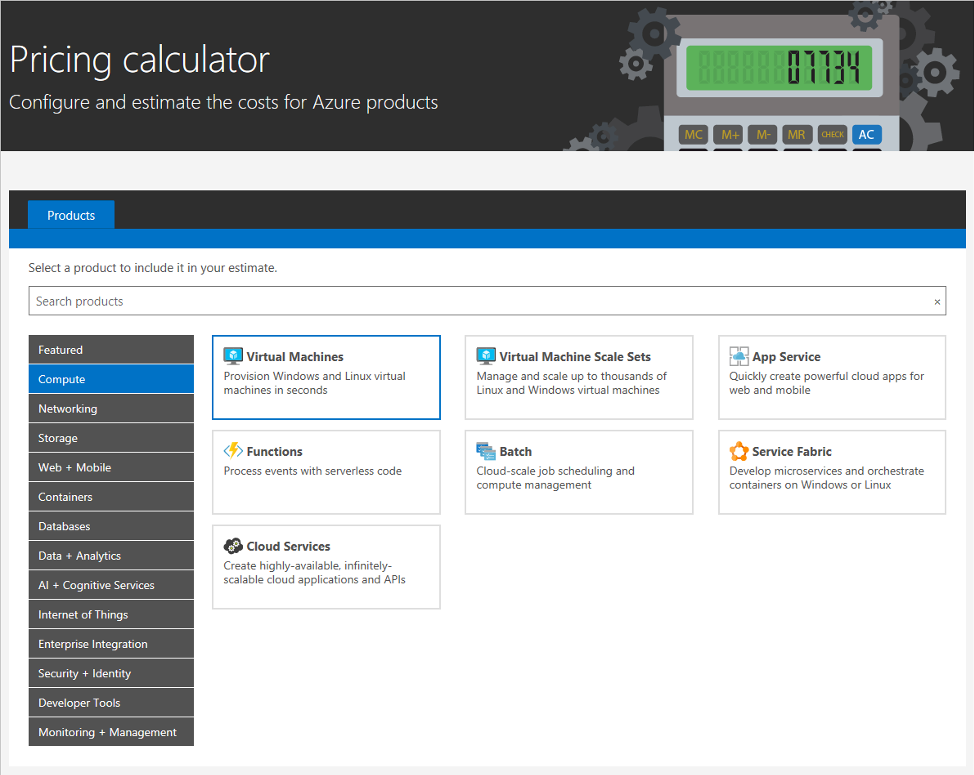
- Add a product. Type the service you need into the search box (for example “Virtual Machines”) and click to add it to your estimate.
- Pick the region. The same VM is priced differently from region to region. Choose the region you will actually deploy to — leaving the default region is the most common mistake.
- Configure size and tier. Set the VM series, CPU/RAM, disk type and database tier (DTU/vCore) to your real, measured needs.
- Set usage hours. Will it run 24/7 or only during business hours? The gap between 730 and 160 hours a month is as big as the bill itself.
- Compare savings options. Put pay-as-you-go, 1- and 3-year Reserved Instances and Savings Plans side by side on the same screen.
- Export the estimate. Download it as an Excel file, share it as a link, or save it to your account.
The Settings That Change Your Estimate the Most
Region
The same workload carries different prices in different regions, and cross-region data egress is billed on top. Always build the estimate with your real target region — and compare two regions side by side when in doubt.
VM size and series
There is a multi-fold price gap between burstable B-series machines and general-purpose D/E-series ones. Small and burstable for dev/test, measured real capacity for production — over-provisioning “just in case” quietly inflates the bill.
Pay-as-you-go vs Reserved Instances and Savings Plans
For workloads that will definitely run 24/7, switching the calculator to a 1- or 3-year commitment (Reserved Instance or Savings Plan) drops the price visibly. For short-lived or variable workloads, pay-as-you-go flexibility usually wins.
Storage, redundancy and bandwidth
Disk tier (Standard HDD/SSD, Premium SSD), redundancy choice (LRS/ZRS/GRS) and outbound data transfer are the three items most estimates forget. GRS redundancy and heavy egress traffic in particular show up on the invoice even when they never made it into the estimate.
Example: Estimating a Small Web Application
Take a simple scenario: one B2s VM (2 vCPU, 4 GB RAM), a 128 GB Standard SSD disk, a small managed database and a modest monthly bandwidth allowance. Add those four items and you’ll see the calculator price each line separately — and update the total instantly whenever you switch region or commitment. That per-line transparency is the tool’s most valuable feature: it answers “why does the total cost this much” item by item.
Cost Optimization Tips From the Field
A few lessons distilled from the enterprise Azure cost-optimization work I run, all worth pairing with the calculator: clean up unused resources regularly (especially orphaned disks, public IPs and forgotten test environments); right-size VMs against real metrics; schedule auto-shutdown for environments that can sleep outside business hours; and consolidate half-empty App Service plans. The calculator tells you what it should cost — these habits keep the invoice below that estimate.
Azure Pricing Calculator FAQ
Is the Azure Pricing Calculator free?
Yes, it is completely free and requires no Azure subscription. A free Microsoft account is only needed if you want to save your estimates.
How accurate are the estimates?
As accurate as the configuration you enter. It calculates from list prices, so if you have enterprise agreement (EA/CSP) discounts your real bill may come in lower. The most common sources of drift are forgotten egress traffic and wrong usage hours.
What is the difference from the Azure TCO Calculator?
The Pricing Calculator estimates the monthly cost of resources you plan to run in Azure. The TCO (Total Cost of Ownership) Calculator compares the long-term cost of migrating your existing on-prem infrastructure to Azure. If you are planning new resources, the Pricing Calculator is the tool you want.
How do I share an estimate with my team?
Use the export options on the estimate screen to download an Excel file, or save the estimate and share it as a link. The Excel export makes budget approvals noticeably easier.
Planning backup capacity as well? Have a look at my Veeam Backup Calculator guide, and if region performance matters for your deployment, my Azure Speed Test guide helps you pick the fastest Azure region.
Note: prices and the interface are updated by Microsoft from time to time — always validate final numbers in the live calculator.
Since cloud technologies became widespread, one of the most common questions has been:“How much will this service cost me per…