



How to Identify the Fastest Azure Region: Azure Speed Test
İçindekiler
ToggleWhat Is Azure Speed Test 2.0?
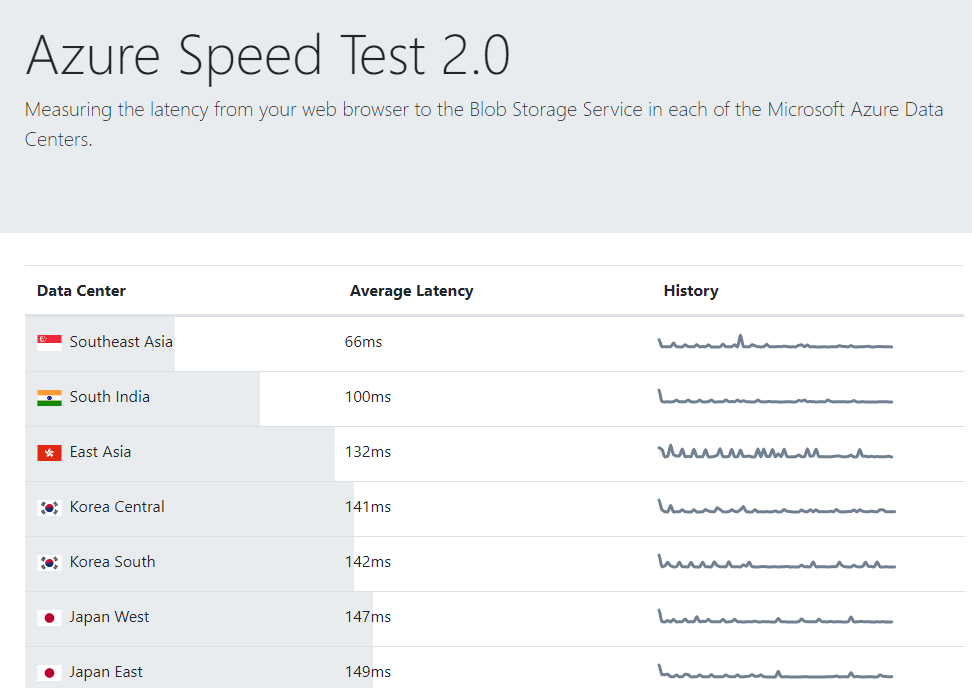
Azure Speed Test 2.0 is a free, browser-based tool that measures the network latency between your browser and Microsoft Azure Blob Storage endpoints across all available Azure regions worldwide.
It is not an official Microsoft product. The tool was originally developed by community contributors and is maintained as an open-source project on GitHub. Despite being community-driven, it has been widely adopted by Azure architects, system administrators, and developers for years because of its simplicity and accuracy.
Key facts about the tool:
- No installation required — runs entirely in your browser
- JavaScript-based — uses HTTPS requests to Azure Blob Storage endpoints
- Covers 30+ Azure regions globally
- Results update in real time as each region is tested
- Free to use with no account or sign-in required
How to Use Azure Speed Test 2.0: Step-by-Step
Step 1 — Open the tool
Navigate to: https://azurespeedtest.azurewebsites.net/
Make sure JavaScript is enabled in your browser. The test starts automatically when the page loads — no buttons to click.
Step 2 — Wait for the test to complete
The tool will sequentially ping each Azure region’s Blob Storage endpoint and display the round-trip latency in milliseconds (ms). Testing all regions typically takes 15–30 seconds.
Step 3 — Read the results
Results are displayed as a list of Azure regions with their corresponding latency values. The lower the number, the faster the connection from your current location to that region.
For example, if you are located in Istanbul, Turkey, you will typically see:
- West Europe (Netherlands) — 30–50 ms
- North Europe (Ireland) — 50–70 ms
- UK South (London) — 50–80 ms
- East US — 100–150 ms
Step 4 — Identify your fastest region
Sort results by latency (lowest first). The region with the lowest latency value is the most geographically optimal data center for your current network location.
Important note: Latency results can vary depending on your ISP, time of day, and current network conditions. Run the test several times at different times of day for a more reliable baseline.
How Azure Speed Test Measures Latency
Azure Speed Test works by sending a small HTTPS request to the Azure Blob Storage endpoint in each region and measuring the round-trip time (RTT). This is similar to running a ping command, but over HTTPS — which gives a more realistic performance indicator for web applications.
The measurement reflects network latency only — it does not measure compute performance, storage throughput, or application response times. For upload/download speed testing, see the alternative tools section below.
Alternative Azure Latency & Speed Tools
Azure Speed Test 2.0 is excellent for a quick latency check, but there are several other tools worth knowing:
| Tool | What It Measures | URL |
|---|---|---|
| AzureSpeed.com | Latency + Upload + Download + CDN | azurespeed.com |
| Azure Speed Test 2.0 | Latency to Blob Storage | azurespeedtest.azurewebsites.net |
| Azure Network Latency Dashboard | Region-to-region backbone latency | Azure Portal |
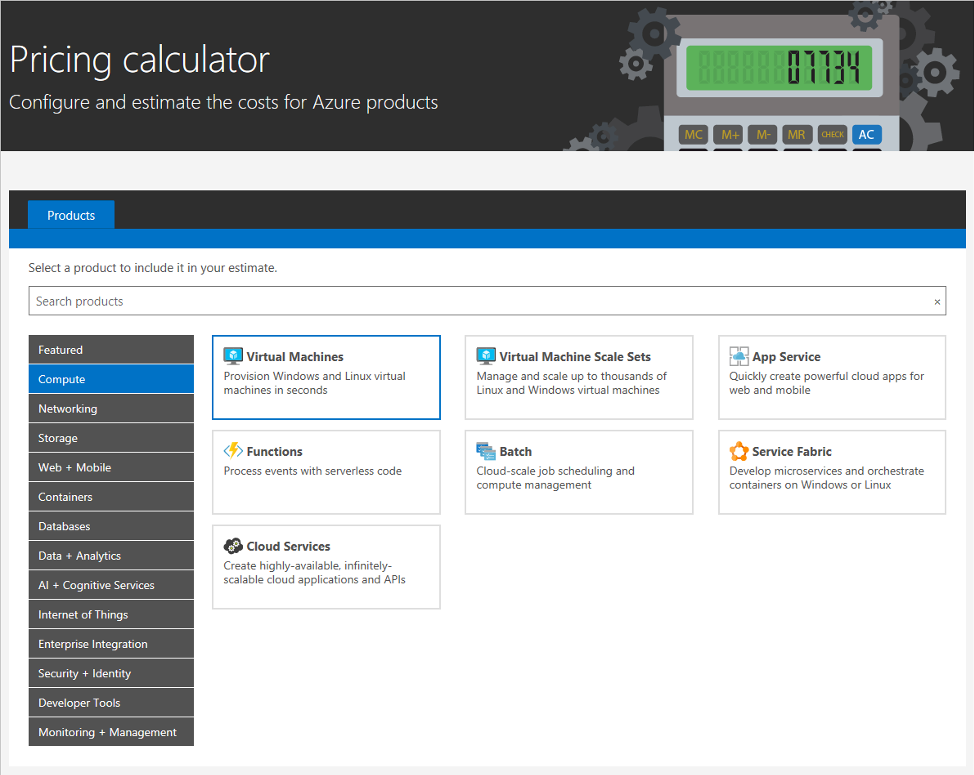
| Azure Pricing Calculator | Cost estimation per region | azure.microsoft.com/pricing |
AzureSpeed.com
AzureSpeed.com is a more feature-rich alternative that goes beyond simple latency testing. It offers:
- Blob Upload Speed Test — measures upload throughput to Azure Blob Storage
- Blob Download Speed Test — measures download throughput
- Large File Upload Test — tests uploading large files with configurable block sizes
- CDN Latency Test — measures latency to Azure CDN endpoints
- Cloud Region Finder — identifies which cloud and region a given domain is hosted in
If you need more than just latency data, AzureSpeed.com is the go-to tool.
Azure Network Latency Dashboard
Available directly in the Azure Portal, the Azure Network Latency Dashboard shows region-to-region backbone latency based on Microsoft’s own continuous measurements. This is useful when you’re planning multi-region architectures, designing disaster recovery setups, or selecting data replication targets.
Unlike browser-based tools, this dashboard reflects Azure backbone performance — not your client-to-Azure latency.
How to Choose the Right Azure Region
Latency is just one factor when choosing an Azure region. Here’s a practical checklist:
- Latency — Use Azure Speed Test to find the lowest-latency region from your users’ locations
- Service availability — Not all Azure services are available in every region. Check the Azure products by region page
- Compliance and data residency — Certain industries and countries have data sovereignty requirements that restrict where data can be stored
- Pricing — Azure pricing varies by region. Always compare costs in the Azure Pricing Calculator
- Availability Zones — For high-availability workloads, prefer regions that support Availability Zones
Frequently Asked Questions
Is Azure Speed Test 2.0 official? No. Azure Speed Test 2.0 is a community-maintained open-source project hosted on GitHub. It is not developed or officially supported by Microsoft.
Does the test affect my Azure bill? No. The Blob Storage endpoints used by the tool are set up specifically for testing purposes and do not generate charges for the end user running the test.
Why do my results change each time I run the test? Network latency is dynamic. It fluctuates based on internet routing, ISP congestion, time of day, and other factors. Run multiple tests to get a reliable average.
Can I use this test to choose a region for my Azure Virtual Machines? Yes, as a starting point. However, VM-to-VM latency within Azure can differ from browser-to-region latency. For production workloads, Microsoft recommends validating with actual VM deployments in candidate regions.
What is the difference between latency and throughput? Latency measures the time it takes for a data packet to travel from source to destination and back (round-trip time). Throughput measures how much data can be transferred per second. Both matter for application performance, but latency is typically more critical for interactive, real-time applications.
Summary
Azure Speed Test 2.0 is one of the fastest and simplest ways to determine which Azure region will deliver the best performance for your users. By running a quick browser-based test, you can compare latency across 30+ global regions and make an informed decision before committing to a deployment.
For a more complete picture, combine Azure Speed Test results with AzureSpeed.com’s upload/download tests and the Azure Network Latency Dashboard for backbone metrics.
If you found this guide useful, check out my other Azure-related articles or leave a comment below with your results.
Last updated: May 2026


iPerf: The Easiest Way to Measure Network Speed on Windows In daily internet usage, we often rely on online speed…
Since cloud technologies became widespread, one of the most common questions has been:“How much will this service cost me per…