
How to Fix the “We Couldn’t Update the System Reserved Partition” Error When Upgrading to Windows 11 on HP Laptops
Hello,
In this article, we will look at the solution to the Windows 11 in-place upgrade issue, specifically occurring on HP laptops.
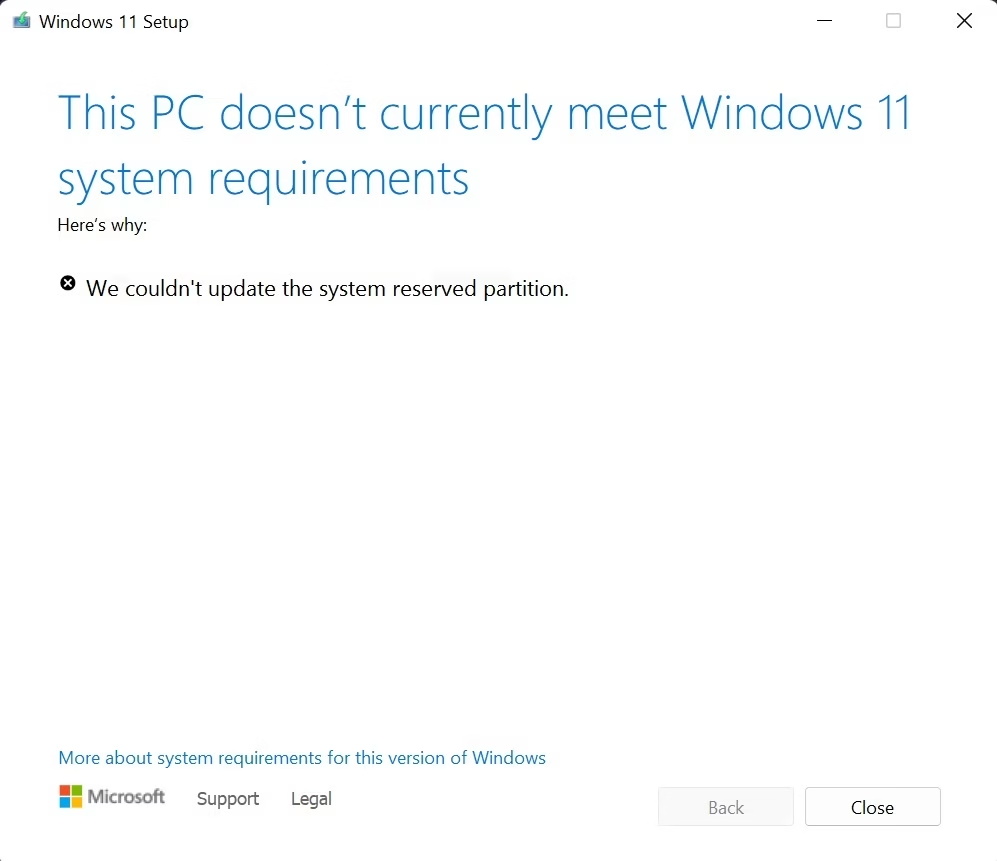
When attempting to upgrade via SCCM or using Windows 11 media, you have most likely encountered the error:
“We couldn’t update the system reserved partition” or “Sisteme ayrılan bölümü güncelleştiremedik.”
The reason for this is that the Windows 10 operating system allocates 100 MB of space to the EFI System Partition by default, and HP laptops write data to the EFI partition that almost completely fills this space. In short, the main problem is that there is not enough free space in the EFI partition.
Previously, I tried shrinking some space from the C:\ drive using a script and creating a new EFI partition. However, to delete the old EFI partition and set the new one as active, Windows must not be running. That means you need to boot with WinPE. However, the lack of free space in the EFI partition also prevents you from booting with WinPE.
For this reason, as a solution, I found a file on the EFI partition that takes up around 40 MB of space and does not interfere with Windows operation. I then wrote a script that backs up this file to a network path and deletes it from the EFI partition. This script also saves detailed logs under the C:\Temp folder. If you encounter any issues, you can check the log file to identify the root cause.
The script is experimental for now. But in my own tests, I did not encounter any problems.
I’m sharing the script below. You just need to replace the part that says \\fileserver.contoso.com with the network path you created on your own servers. Don’t forget to configure the share with Read/Write permissions.
Powershell Script
# Stop script on errors
$ErrorActionPreference = “Stop”
# Log file
$LogDir = “C:\Temp\FirmwareDelete”
if (-not (Test-Path $LogDir)) { New-Item -ItemType Directory -Path $LogDir -Force }
$LogFile = Join-Path $LogDir (“FirmwareDelete_” + (Get-Date -Format “yyyyMMdd_HHmmss”) + “.log”)
# Log writing function
function Write-Log {
param([string]$Message)
$TimeStamp = Get-Date -Format “yyyy-MM-dd HH:mm:ss”
“$TimeStamp – $Message” | Out-File -FilePath $LogFile -Append -Encoding UTF8
}
try {
Write-Log “=== Script Started ===”
# Import Storage module
Import-Module Storage -ErrorAction Stop
Write-Log “Storage module loaded.”
# EFI partition GUID
$EfiGuid = ‘{C12A7328-F81F-11D2-BA4B-00A0C93EC93B}’
# Existing EFI partitions
$EfiList = Get-Partition -DiskNumber 0 | Where-Object {$_.GptType -eq $EfiGuid}
Write-Log “Number of EFI partitions found: $($EfiList.Count)”
if (-not $EfiList) {
Write-Log “No EFI partition found. All partitions on Disk 0:”
Get-Partition -DiskNumber 0 | ForEach-Object {
Write-Log “Partition: $($_.PartitionNumber), GPT Type: $($_.GptType), Size: $($_.Size)”
}
throw “EFI partition not found!”
}
# Select the first EFI partition
$Efi = $EfiList | Select-Object -First 1
# EFI letter check and char → string conversion
$CurrentDriveLetter = ([string]($Efi | Get-Volume).DriveLetter).Trim()
if ($CurrentDriveLetter) {
Write-Log “EFI partition is already mounted: $CurrentDriveLetter. This letter will be used.”
$MountPoint = “$CurrentDriveLetter`:”
$UnmountNeeded = $false
} else {
$MountPoint = “Z:”
Mount-Partition -Partition $Efi -AssignDriveLetter -DriveLetter $MountPoint
Write-Log “EFI partition mounted as Z:.”
$UnmountNeeded = $true
}
# firmware.bin backup path
$BackupPath = “\\fileserver.contoso.com\HP_Firmware_Backup\$env:COMPUTERNAME\firmware.bin”
# Create backup directory if it does not exist
$BackupDir = Split-Path $BackupPath -Parent
if (-not (Test-Path $BackupDir)) {
New-Item -ItemType Directory -Path $BackupDir -Force
Write-Log “Backup directory created: $BackupDir”
}
# firmware.bin path and log folder content
$FirmwarePath = “$MountPoint\EFI\HP\DEVFW\firmware.bin”
Write-Log “Checking firmware path: $FirmwarePath”
if (Test-Path “$MountPoint\EFI\HP\DEVFW”) {
$Files = Get-ChildItem “$MountPoint\EFI\HP\DEVFW”
if ($Files) {
Write-Log “Files found in DEVFW folder:”
foreach ($f in $Files) { Write-Log ” – $($f.Name)” }
} else {
Write-Log “DEVFW folder is empty.”
}
} else {
Write-Log “DEVFW folder not found.”
}
# Check if firmware.bin exists
if (Test-Path $FirmwarePath) {
Copy-Item $FirmwarePath $BackupPath -Force
Write-Log “Backup successful: $BackupPath”
# Delete firmware.bin
Remove-Item $FirmwarePath -Force
Write-Log “firmware.bin deleted.”
} else {
Write-Log “firmware.bin not found. Script will continue successfully.”
}
# EFI unmount (only if script mounted it)
if ($UnmountNeeded) {
Dismount-Partition -Partition $Efi
Write-Log “EFI partition unmounted.”
} else {
Write-Log “EFI was already mounted, unmount skipped.”
}
Write-Log “=== Script Completed ===”
} catch {
Write-Log “An error occurred: $_”
exit 1 # Exit code 1 to stop the task
}
If you want to perform a mass upgrade via SCCM, it will be sufficient to add this script to the beginning of the Task Sequence.
We will cover that in another article.
If any of our colleagues try out the script, sharing their feedback — whether positive or negative — would be very helpful for improving and refining its usage.